Start here
Getting startedAgentSupervisorAdmin
Rewind adds recording, monitoring and reporting to the Microsoft Teams calls you already make — plus queues, routing and wallboards when you need them. Calls stay on Teams; your data stays in Australia.
Sign in
Open the app and sign in with Microsoft. Your role and seat come from how your account is mapped in Settings. Sessions are shared across browser tabs — handy for putting a wallboard on a TV while you work — and when a session expires you simply sign in again.
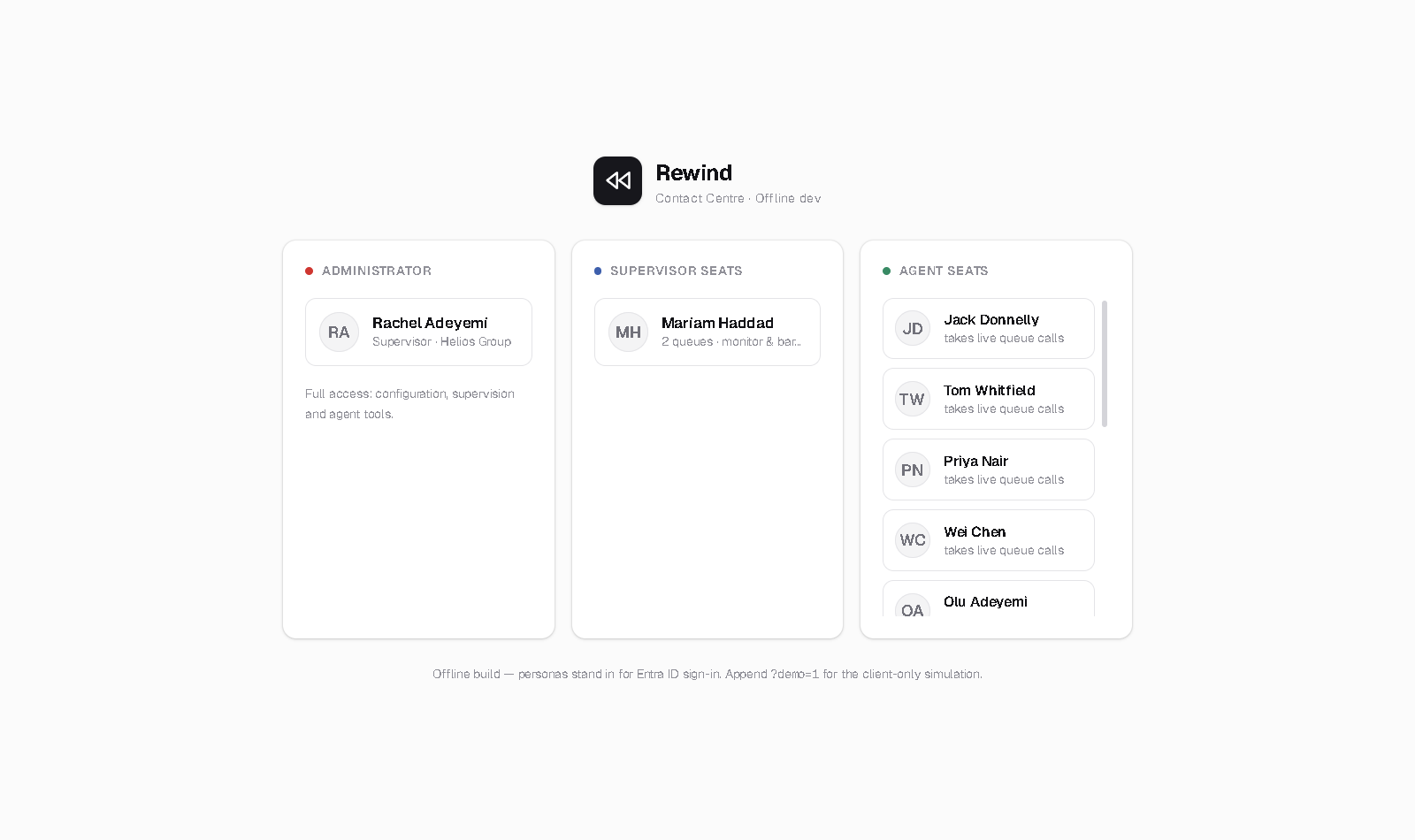
In the demo build, append ?demo=1 to the URL for a client-only simulation that runs without a backend — useful for demos on a laptop.
The setup wizard, at a high level
New tenants set themselves up in-app — no professional services. The guide walks you through four steps:
- Connect Teams — sign in with Microsoft and point a resource account at Rewind (Direct Routing, Operator Connect or Calling Plans).
- Set yourself up — create queues, build your IVR, choose a recording policy and map agents to seats.
- Take calls — calls ring agents natively in Teams and show up live on the wallboard.
- Everything recorded — every call is captured to Australian storage, searchable and audited.
Every change in Settings takes effect immediately — there are no restarts.
Pricing. Rewind Seat is A$79 per enabled user per month with 2,500 pooled minutes; Compliance Recording is A$35 per recorded user per month. See pricing and trial details.
For agents
Taking callsAgent
When you sign in on an agent seat, the softphone dock follows you in the bottom corner of every page. Calls ring in the Teams client you already use — there's no second softphone to install.
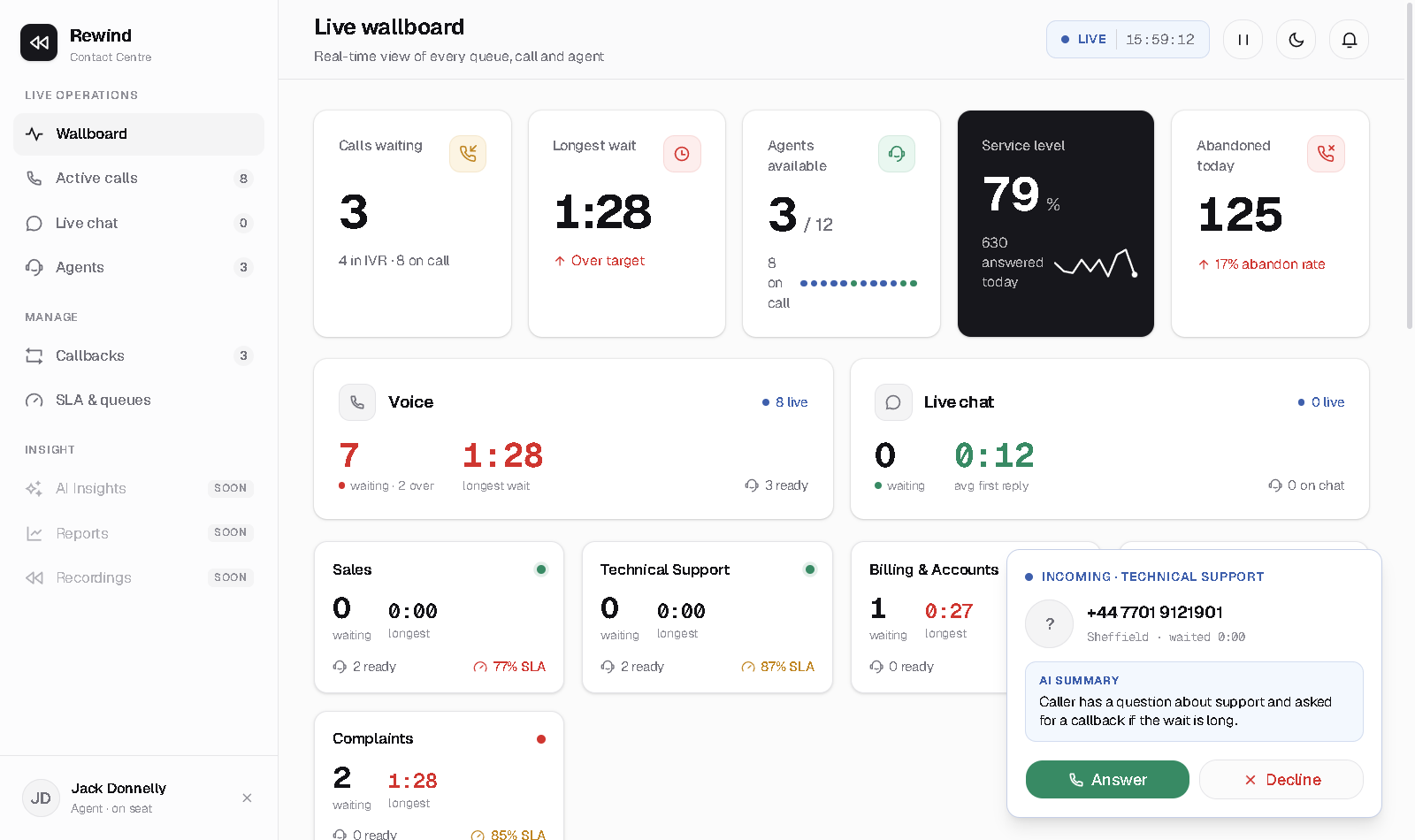
- Incoming call — the dock pops with the caller, queue and wait time, plus the AI summary when Ava (the AI receptionist) handled the front of the call. Answer or Decline. Declining counts as a missed call under the presence rules.
- On a call — hold, mute, transfer and recording controls. What you can pause or stop follows the queue's recording policy.
- Wrap-up — after hang-up you get a wrap-up countdown and the disposition panel. Pick an outcome, optionally add notes, or skip.
- Status — set yourself Away with a reason code (Break, Lunch, Training…) when you step away.
Dispositions
A disposition is the outcome you pick after each call (for example Resolved or Callback required). The list is set per queue in Settings. Dispositions feed every report, so picking one keeps your numbers honest.
Watch the floor
Live wallboard & TV modeAgentSupervisor
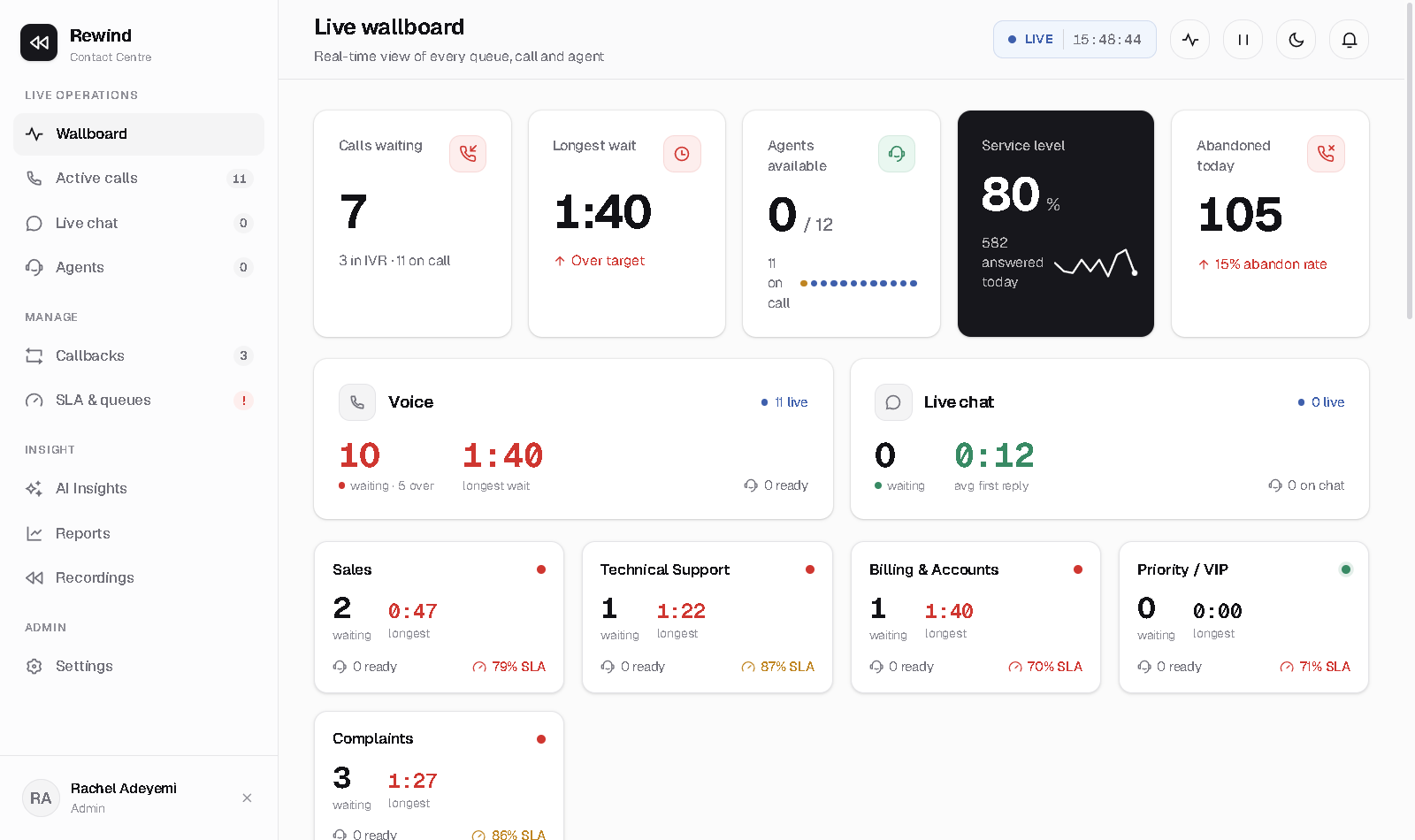
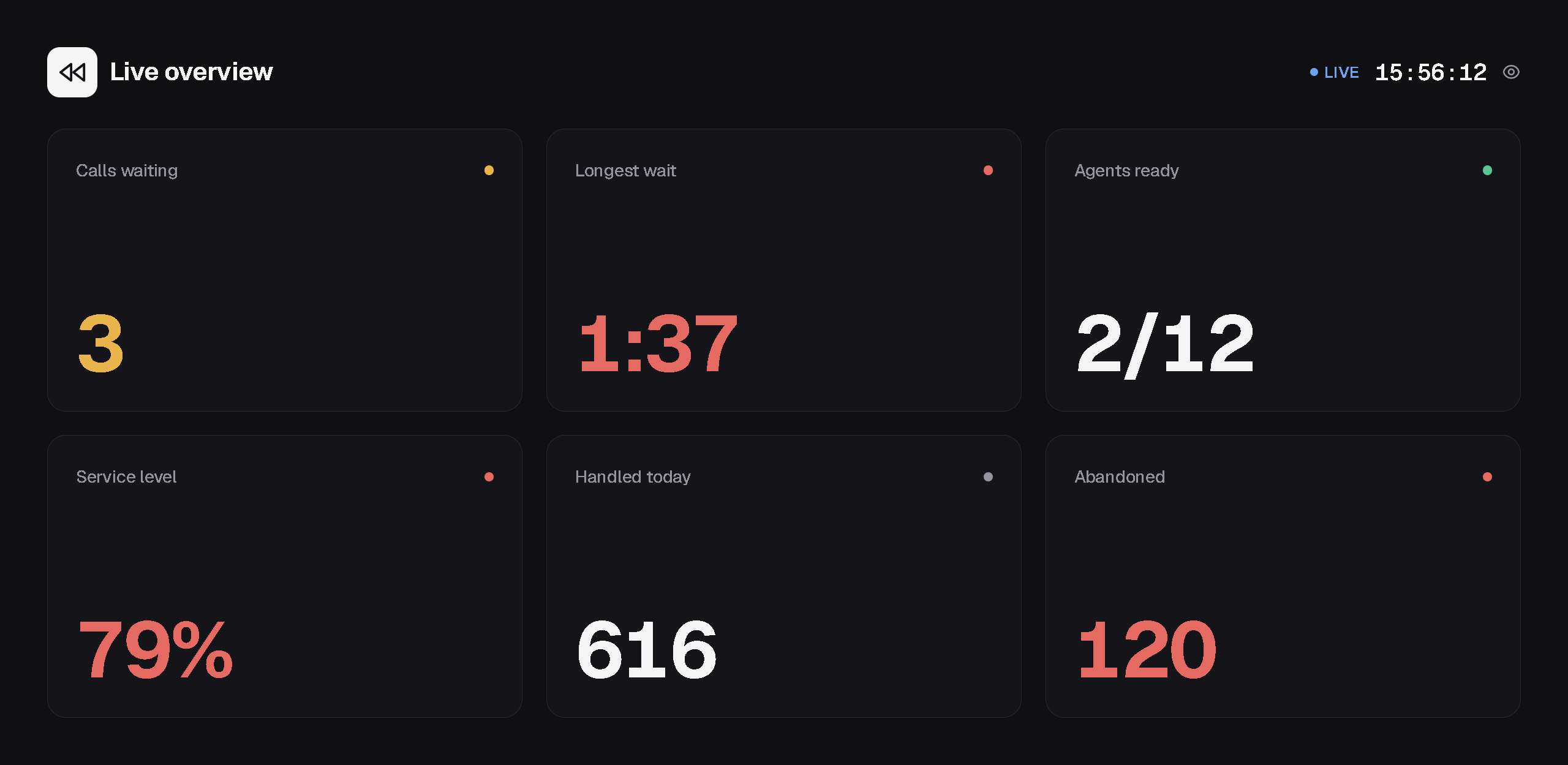
The wallboard is the home page and the real-time pulse of the floor: top-line KPIs (calls waiting, longest wait, agents available, service level, abandons), per-queue tiles, the live waiting list, active calls, and a running activity feed. Tiles shift colour as targets slip, and almost everything is clickable.
Call details
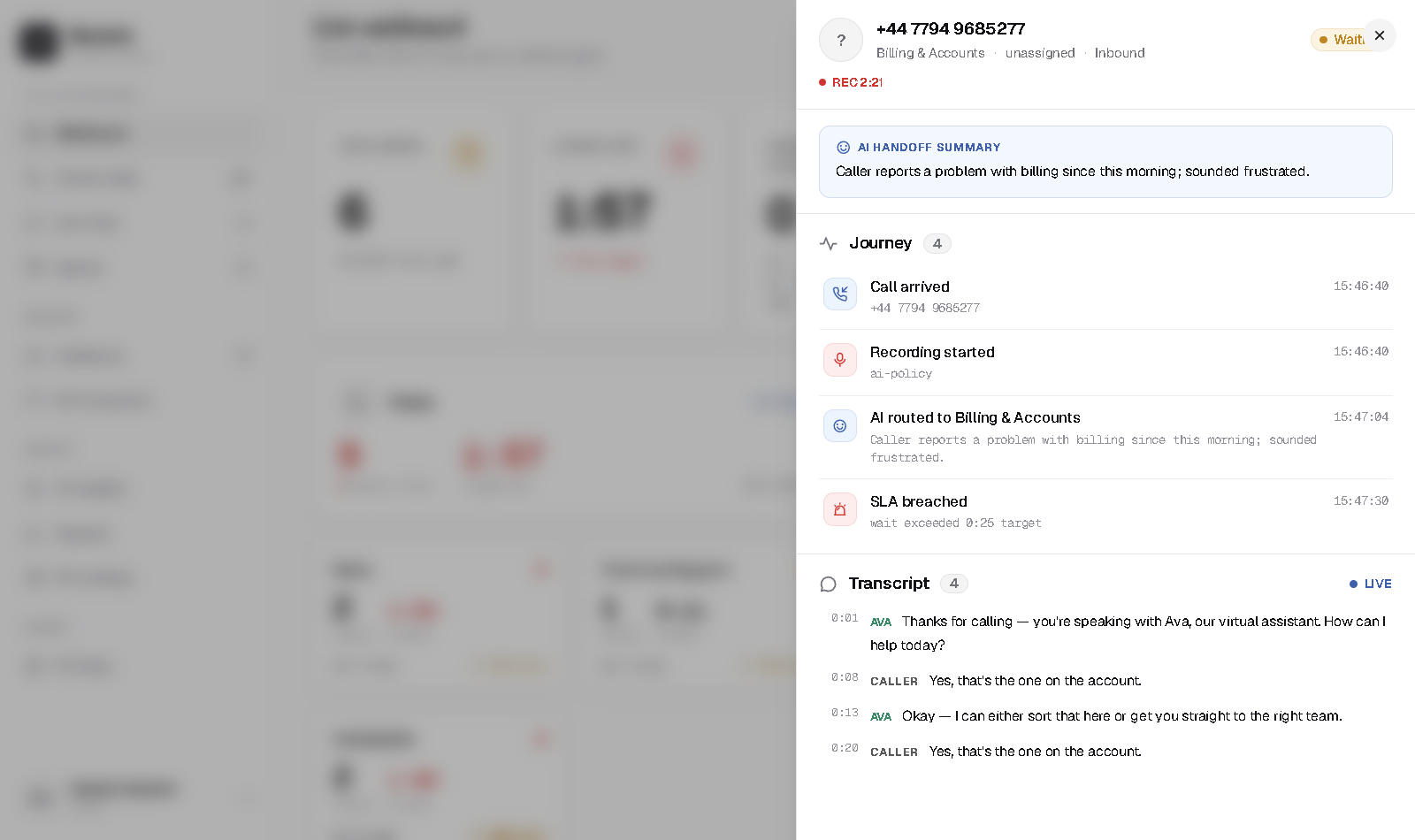
Click any call — live or finished — to open the call drawer: the caller and queue, the recording state with a running REC timer, the AI handoff summary when Ava fronted the call, the full journey timeline, and the transcript with sentiment colouring. Supervisors get Listen and Barge here while the call is connected.
TV mode
The TV wallboard is a chrome-free display board for a TV or spare monitor, with four screens: Live overview, Queues, Agent floor and Service level. It rotates through them or pins one all day. To put it on a screen, browse to /wallboard on the TV, sign in once, and click the eye icon for fullscreen. Configure what it shows in Settings → Wallboard.
Compliance
RecordingsSupervisor
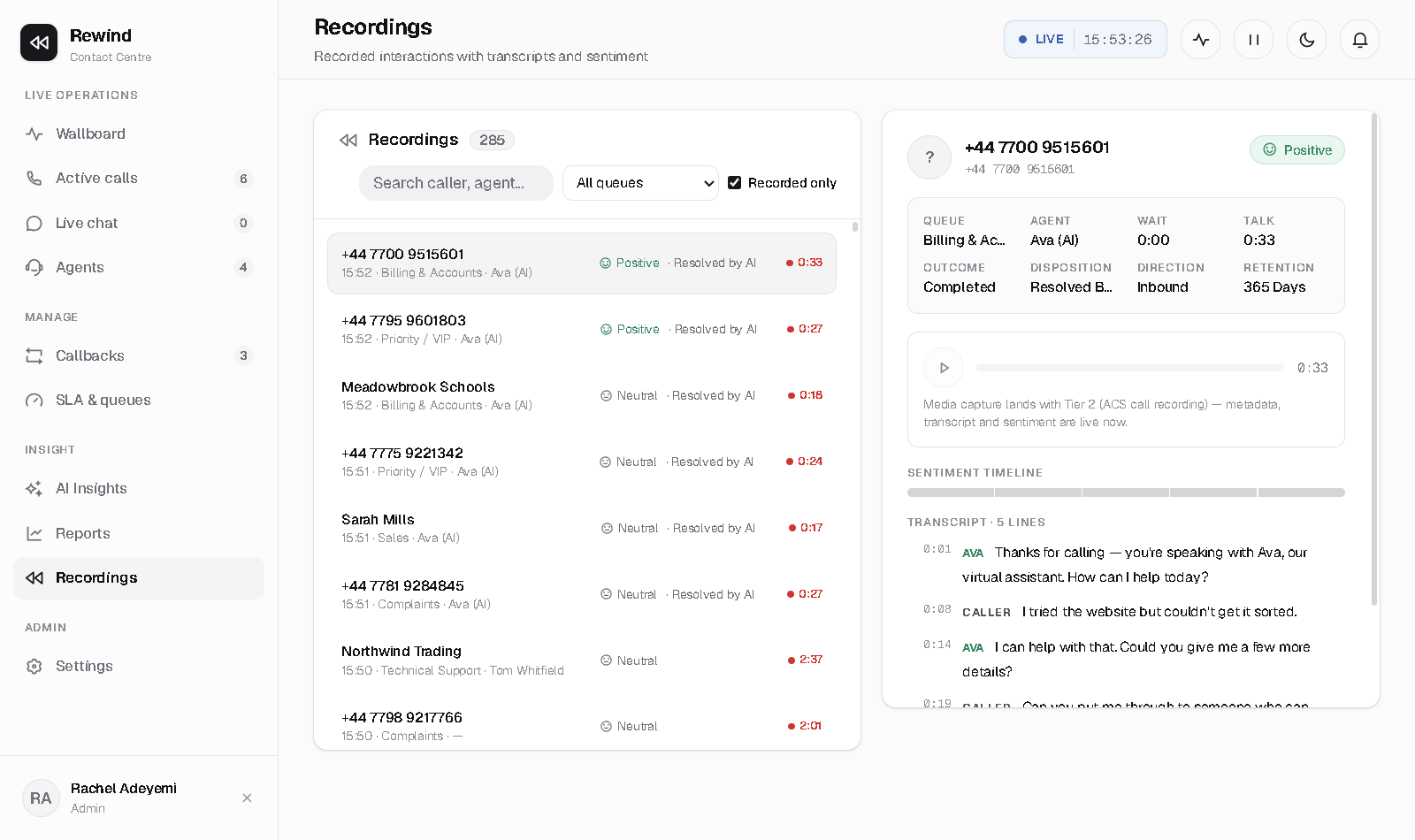
Every recorded interaction with its metadata, sentiment timeline and transcript.
- Search by caller or agent; filter by queue.
- Select a row for the full record — queue, agent, wait and talk time, outcome, disposition, direction, retention (from the queue's policy), the sentiment timeline and the transcript, with Ava's lines in green for calls the AI handled or fronted.
- Calls resolved entirely by the AI appear here too, because recording starts the moment the platform answers.
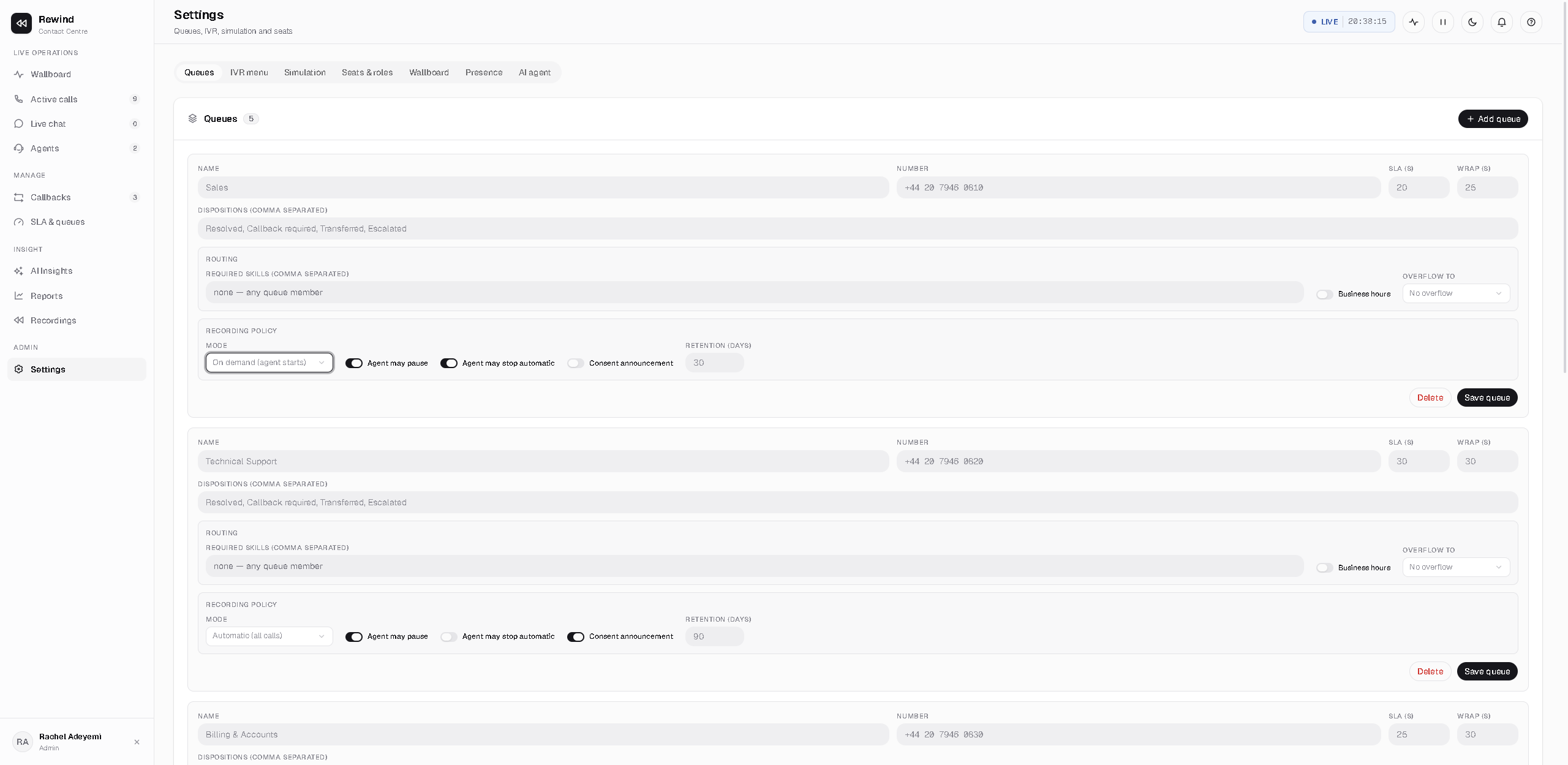
Playback and retention. How and whether a call is recorded is set by each queue's recording policy in Settings — Off, On demand (the agent starts) or Automatic (all calls) — along with pause/stop permissions, the consent announcement and the retention period in days. Every playback is logged for audit.
Insight
ReportsSupervisor
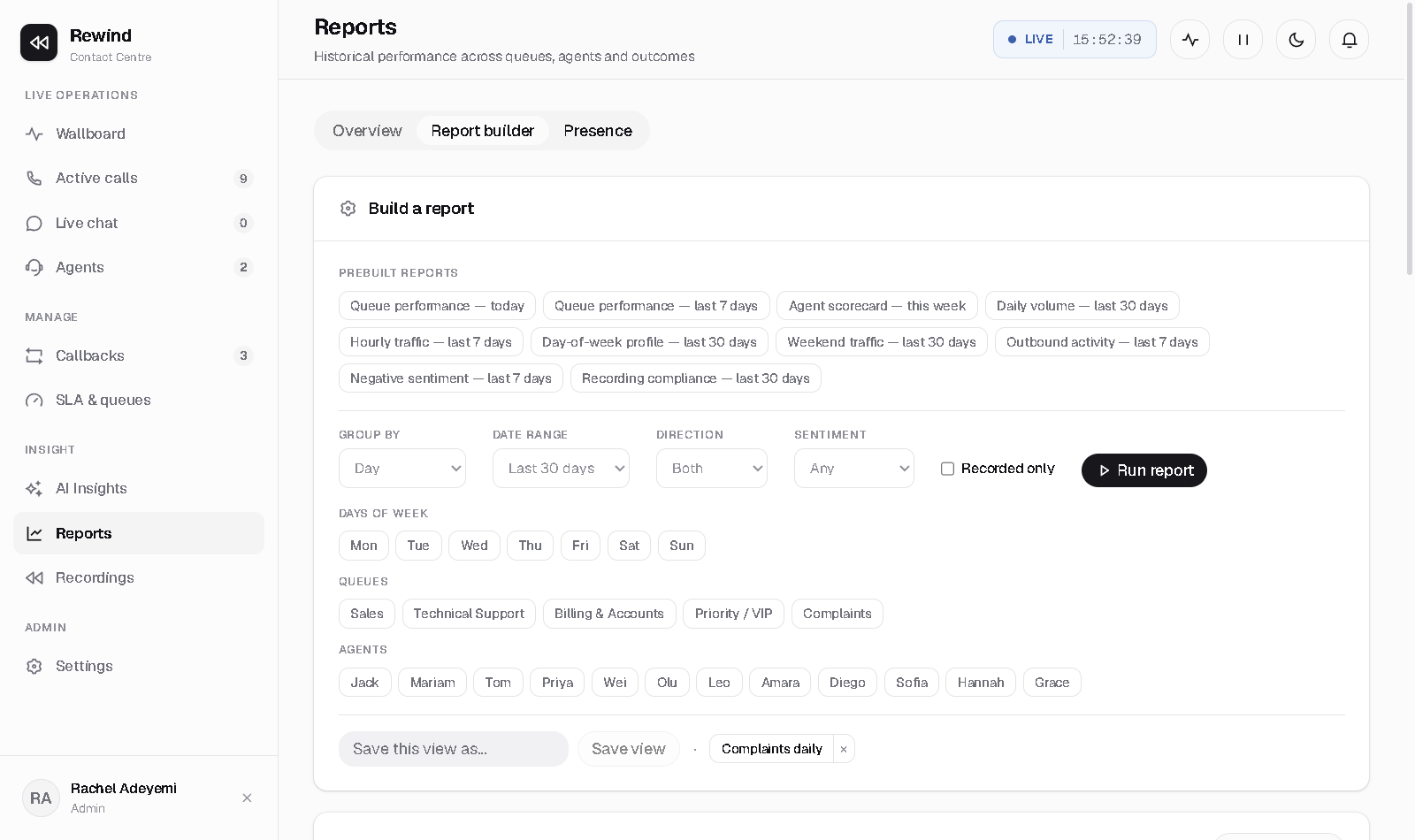
Three tabs: Overview, Report builder and Presence.
- Overview — today at a glance: totals, by-queue and by-agent tables, volume by hour, dispositions and sentiment. Ava appears as an agent with the “Resolved by AI” disposition, so AI containment is reportable with zero setup.
- Report builder — start from a one-click prebuilt report or build from scratch. Choose a group-by dimension (queue, agent, day, day of week, hour, disposition, sentiment, direction), a date range, then narrow with day-of-week, queue, agent, direction, sentiment and recorded-only filters. Run it, export CSV, and Save view to keep it. Saved views are per-user and relative — “Last 7 days” still means the last 7 days next month.
- Presence — time-in-status for the whole floor: signed-in, available, on-call, wrap-up and away hours per agent, an occupancy bar and missed calls, over any date range, with CSV export.
Scheduled email reports aren't available yet — build a report, save the view, and export CSV. Scheduled email is on the roadmap.
Voice + digital
Live chatAgentSupervisor
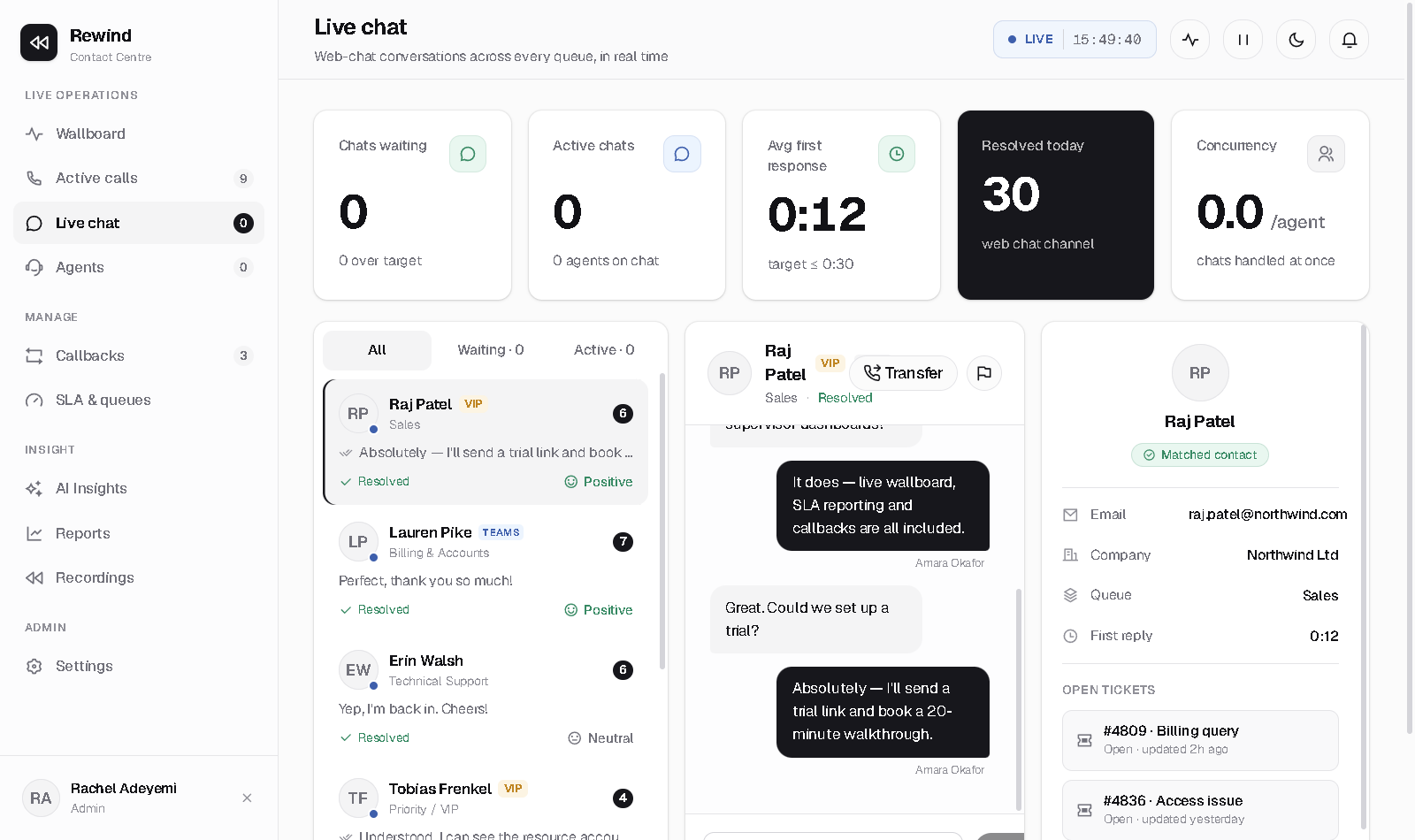
Web-chat conversations run through the same queues and routing as your calls. The left rail lists conversations with unread badges and channel icons (web widget vs native Teams); the right pane is the conversation, with typing indicators and customer context. Agents reply and resolve; supervisors can message into any conversation.
An embeddable web-chat widget runs on your own site and routes into the same queues. Preview it from Settings → Web chat before you paste the embed snippet into your website.
No waiting
CallbacksSupervisor
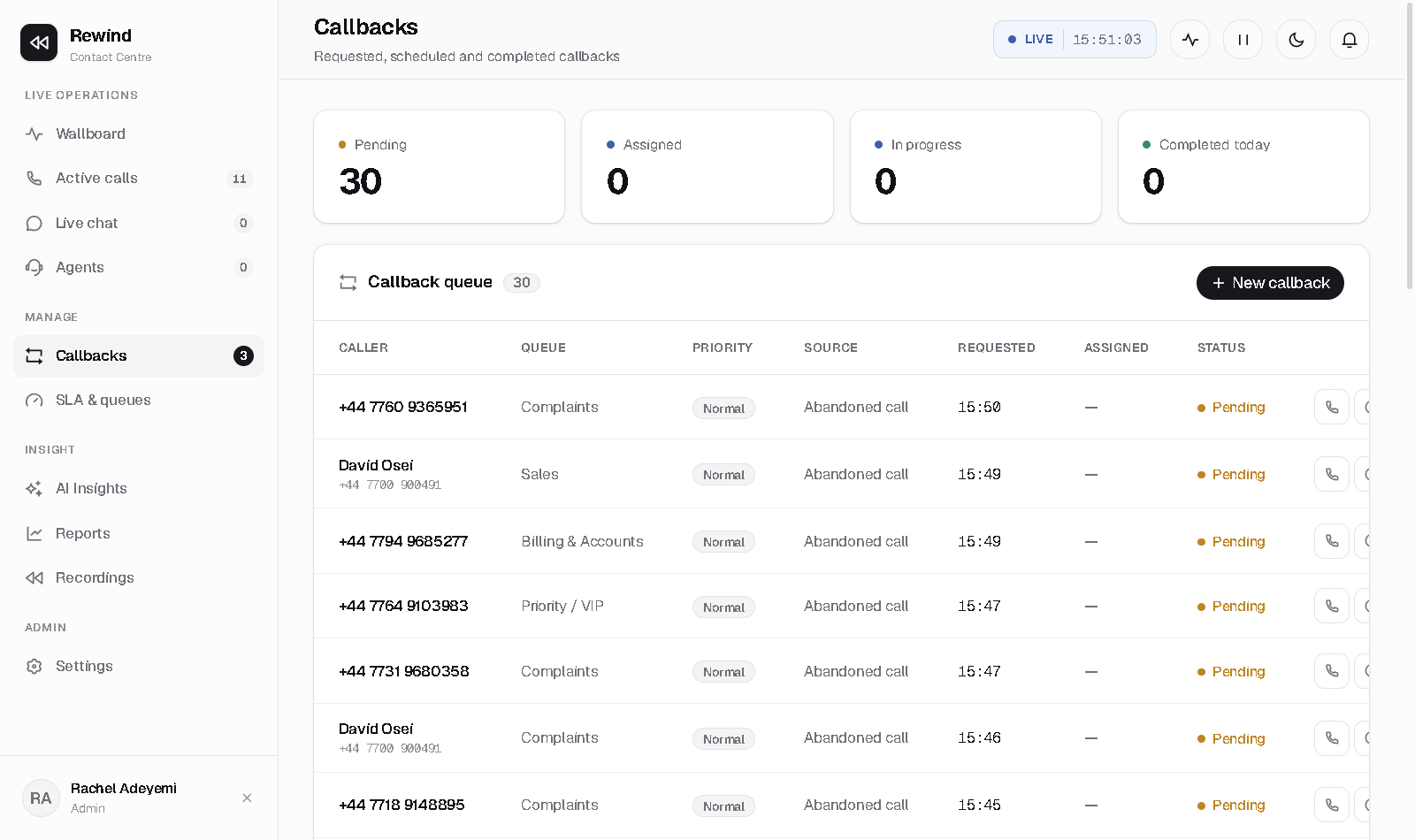
Callers can request a callback instead of waiting (offered in queue, or created from an abandoned call). The Callbacks page tracks every request.
- Each row shows the caller, target queue, priority (VIP callers float up), source and status (Pending → Assigned → In progress → Completed).
- Call now dials the callback immediately from an available agent.
- Schedule sets a future time; the engine fires it automatically when due.
- New callback creates one manually — number and queue.
Service level
SLA & queuesSupervisor
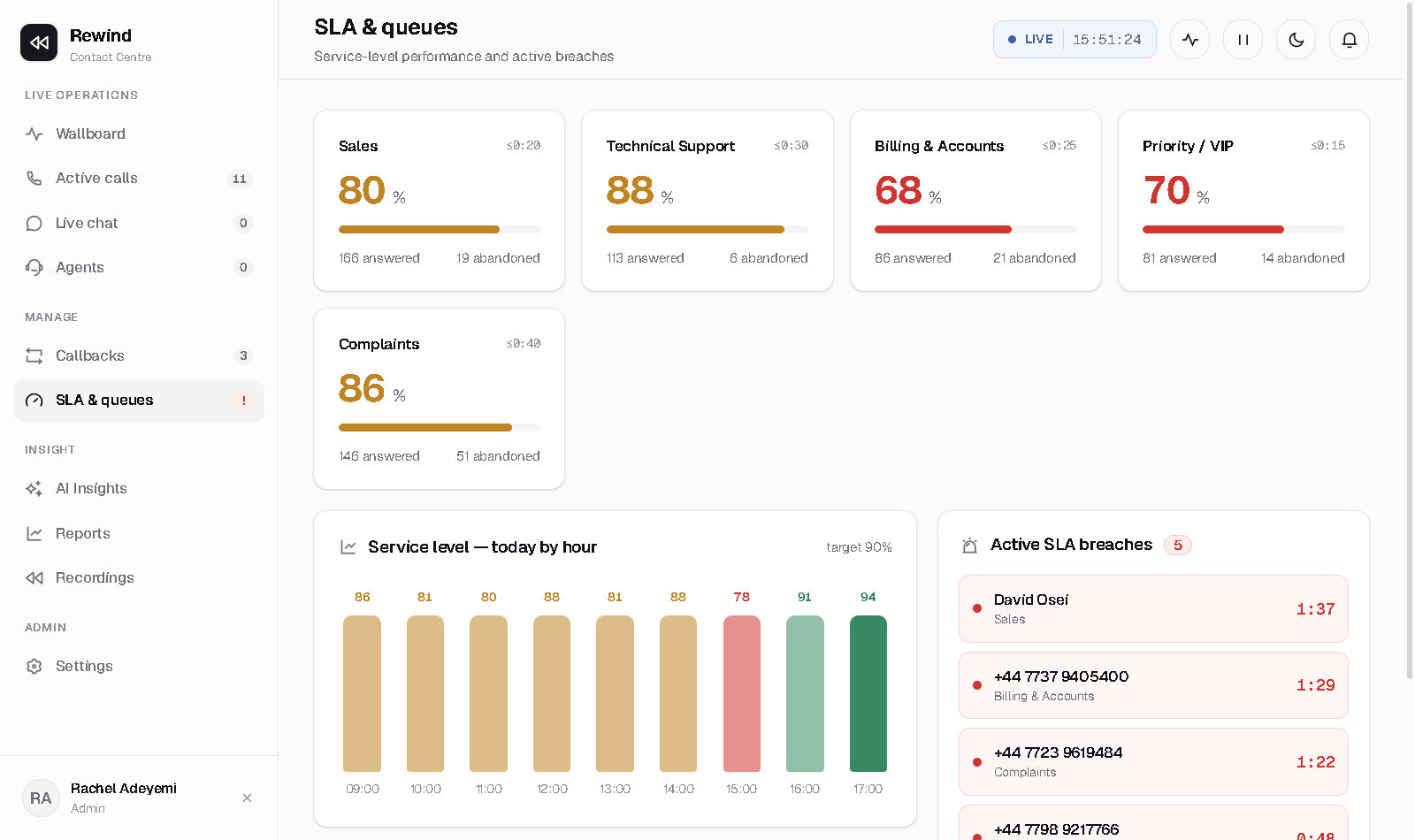
Service-level detail per queue: answered and abandoned counts, attainment against each queue's target, live breach indicators and the day's trend. When the wallboard shows pressure, this page tells you which queue is bleeding and whether the cause is staffing (no agents ready) or volume (an arrival spike). Pair it with Reports → Presence to see where the people are.
Supervision
Supervisor toolsSupervisor
Monitor and barge
To listen to a live call, open Active calls or any call drawer and choose Listen — the agent and caller can't hear you. Barge joins you into the call audibly. Both are available on connected calls only.
The agent floor and agent panel
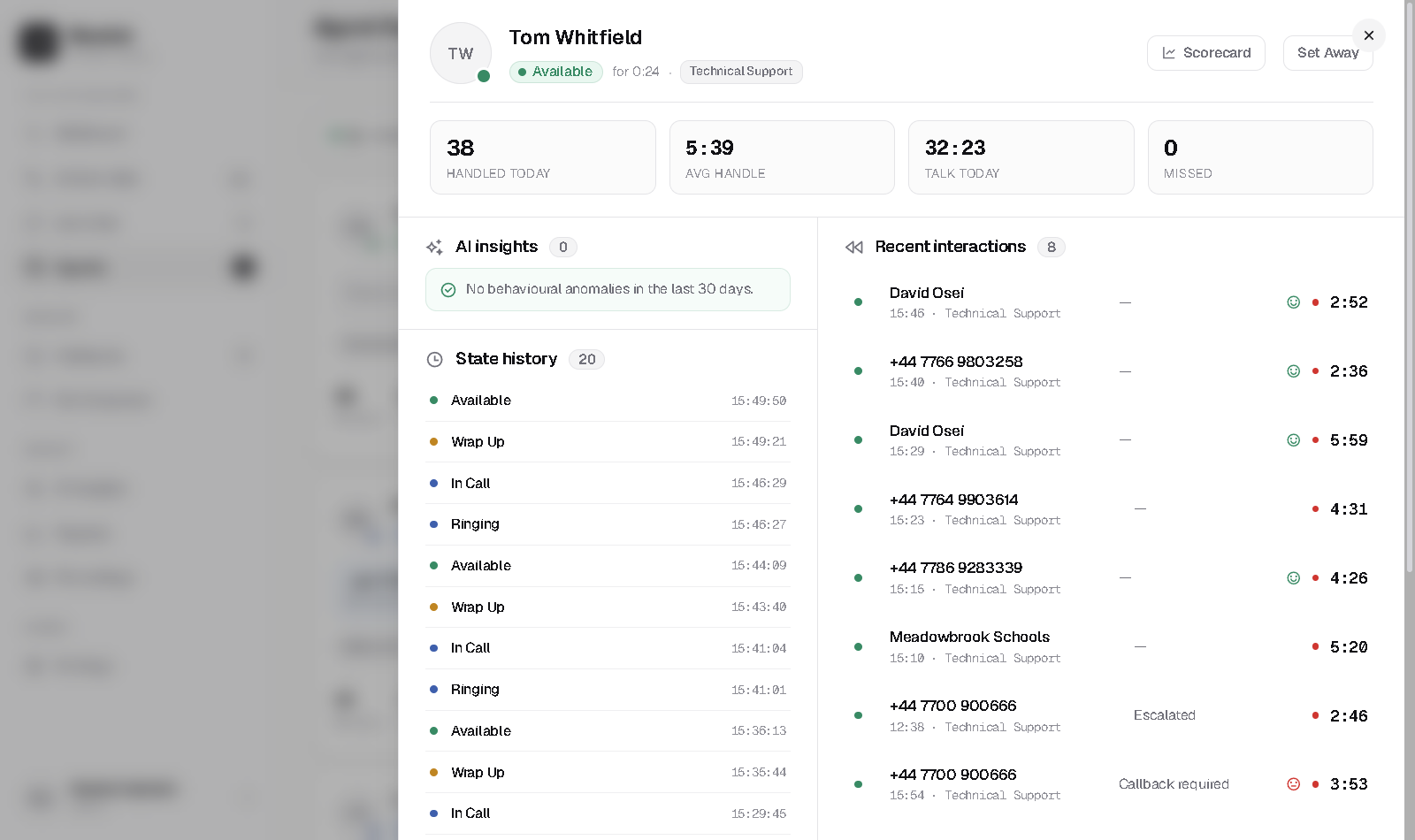
The agent floor shows a live card for every agent: current state with time-in-state, the active call, queues served and today's stats. Each card lets you view detail, open the scorecard, or listen. The agent panel is a wide flyout with everything about one agent right now — status with Set Available / Set Away override buttons (audited, and blocked mid-call), a KPI strip, the agent's AI insight flags, state history with reason codes, and recent interactions.
Scorecards
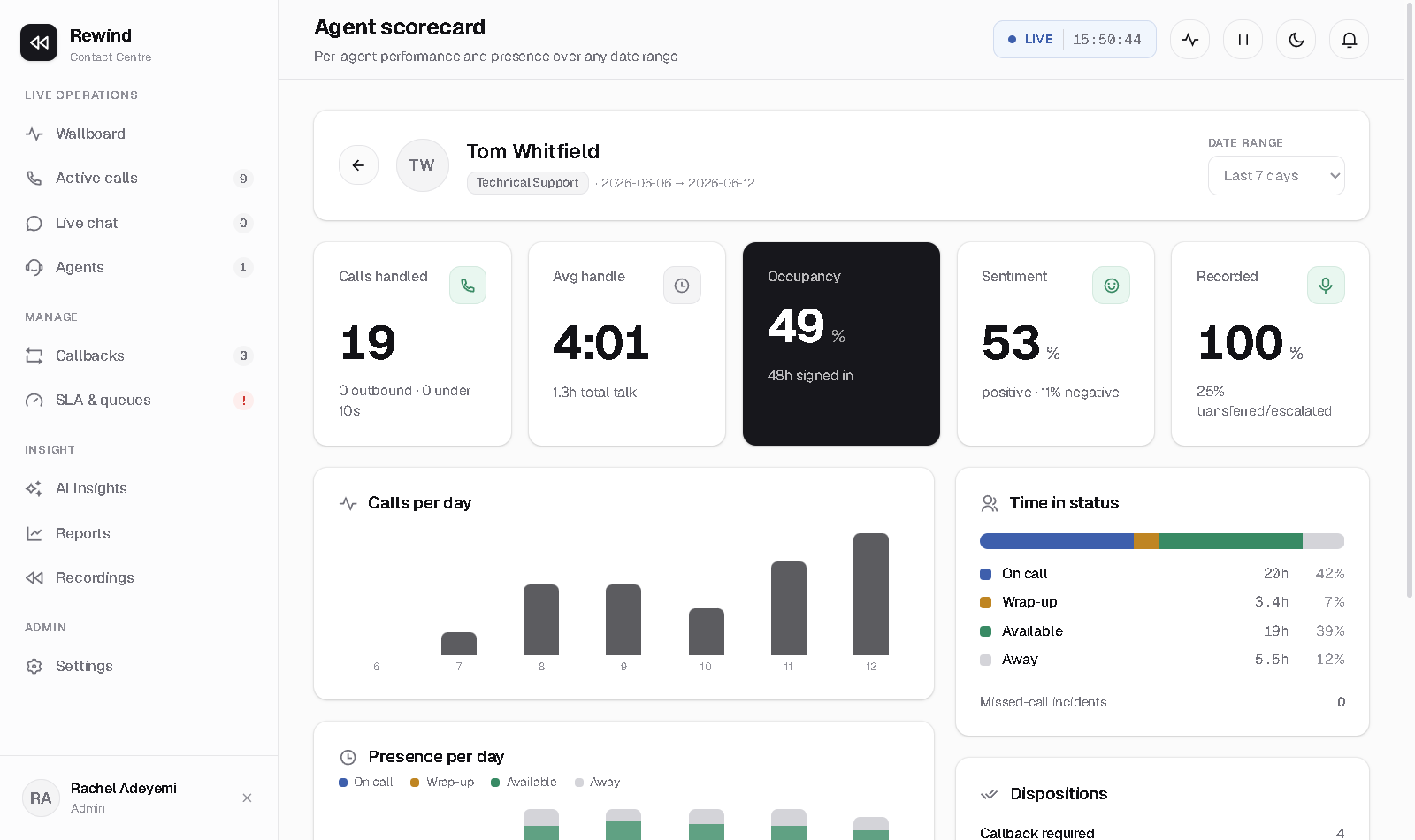
The scorecard is the deep-dive for one agent over any date range — open it from a card, the agent panel, or AI Insights. Pick a range and everything refilters: calls handled, average handle, occupancy, sentiment and recorded tiles; a calls-per-day trend; a presence-per-day chart; the time-in-status breakdown with missed-call incidents; dispositions; and the agent's AI insight cards.
Presence & AI Insights
Force an agent Available or Away from the agent panel (audited, blocked mid-call); presence reporting lives in Reports → Presence. AI Insights continuously scans the last 30 days for patterns worth your attention — short-call bursts, repeat dialing, repeat callers, recording gaps on always-record queues, sentiment and transfer outliers, and abandon spikes. Filter by severity or pattern, and click a finding to open the agent or the first evidence call.
For admins
SettingsAdmin
Every change applies immediately; there are no restarts.
- Queues — name, number, SLA target and wrap-up time; the disposition list; routing (required skills, business hours, overflow queue and threshold); and the recording policy (Off / On demand / Automatic, pause and stop permissions, consent announcement, retention days).
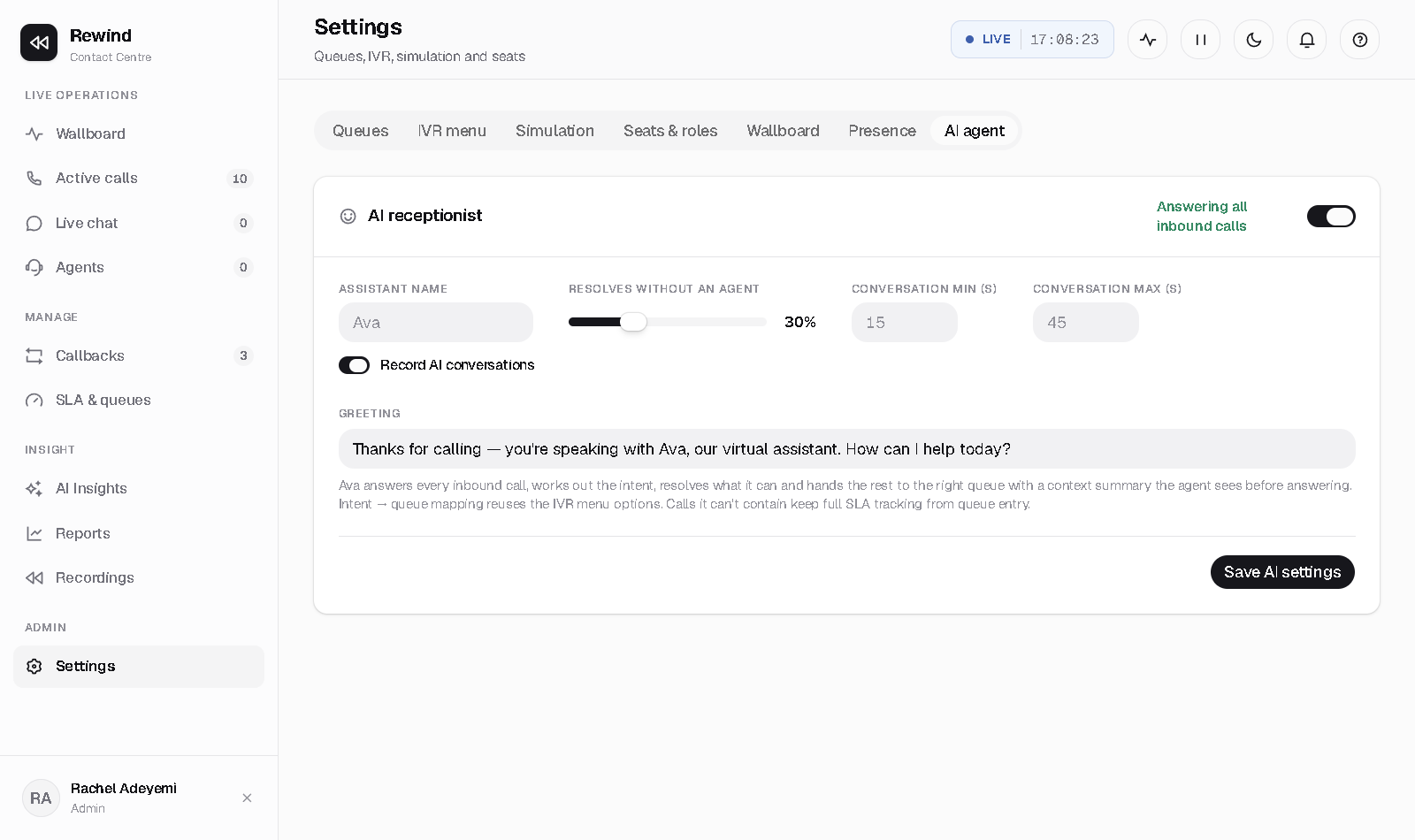
- IVR menu — greeting plus digit → queue options. With the AI receptionist on, callers hear Ava instead, but the digit options still define the intent → queue mapping she routes with, so keep them accurate.
- Seats & roles — who sits where: each seat's name, queues, skills and role. Skills pair with the queues' required-skills routing. Granting a seat a Teams identity makes it a billable, licensed seat.
- Recording policy & redundancy — compliance recording is enforced by Teams policy and tamper-evident. It runs fail-open or fail-closed (“strict”, which blocks the call if the recorder can't join — only once the recorder is highly available). Settings → Recording shows readiness checks and a provisioning script.
- Billing — one flat plan, priced per enabled user, per month, in AUD, with a pool of shared call minutes; Compliance Recording is an optional flat add-on per recorded user. If a subscription lapses, config changes are blocked with a “past due” notice but calls keep flowing — billing never blocks telephony.
AI receptionist
Enable the AI receptionist (or fall back to classic IVR), set the assistant's name and greeting, the share of calls it resolves without an agent, the conversation length, and whether AI conversations are recorded (on by default — recording runs from the moment Ava answers, through the queue and agent leg).
Honest answers
FAQ
Active calls (or any call drawer) → Listen. The agent and caller can't hear you. Barge joins you audibly.
Everywhere: live (the Ava · AI receptionist stage), Reports (agent “Ava (AI)”, disposition “Resolved by AI”), Recordings (with the AI transcript), and the call drawer's journey and handoff summary.
AI Insights raises a critical “unrecorded calls on always-record queues” finding automatically; click through to the calls and check their journey for recording-stop events.
Not yet — build it in the Report builder, save the view, and export CSV. Scheduled email reports are on the roadmap.
No. Calls ring in the Teams client your agents already use.
In Australia, encrypted and per-tenant, with retention and legal-hold controls.
Ask the assistant at the top of this page, or email hello@rewindcx.au.